User Guide
This comprehensive manual covers all features of the Napari Chromosome Analysis toolkit.
Note
Author: Md Abdul Kader Sagar Affiliation: HITIF/LRBGE/CCR/NCI
Overview
The Napari Chromosome Analysis toolkit is designed for analyzing metaphase chromosomes using advanced image processing techniques. It provides tools for:
Automated chromosome segmentation using Cellpose
Multi-channel fluorescence image analysis
Spot detection for DNA-FISH and CENP-C signals
Quantitative intensity measurements
Batch processing capabilities
Interactive manual correction tools
The Interface
The interface consists of several interactive widgets and buttons, organized as follows:
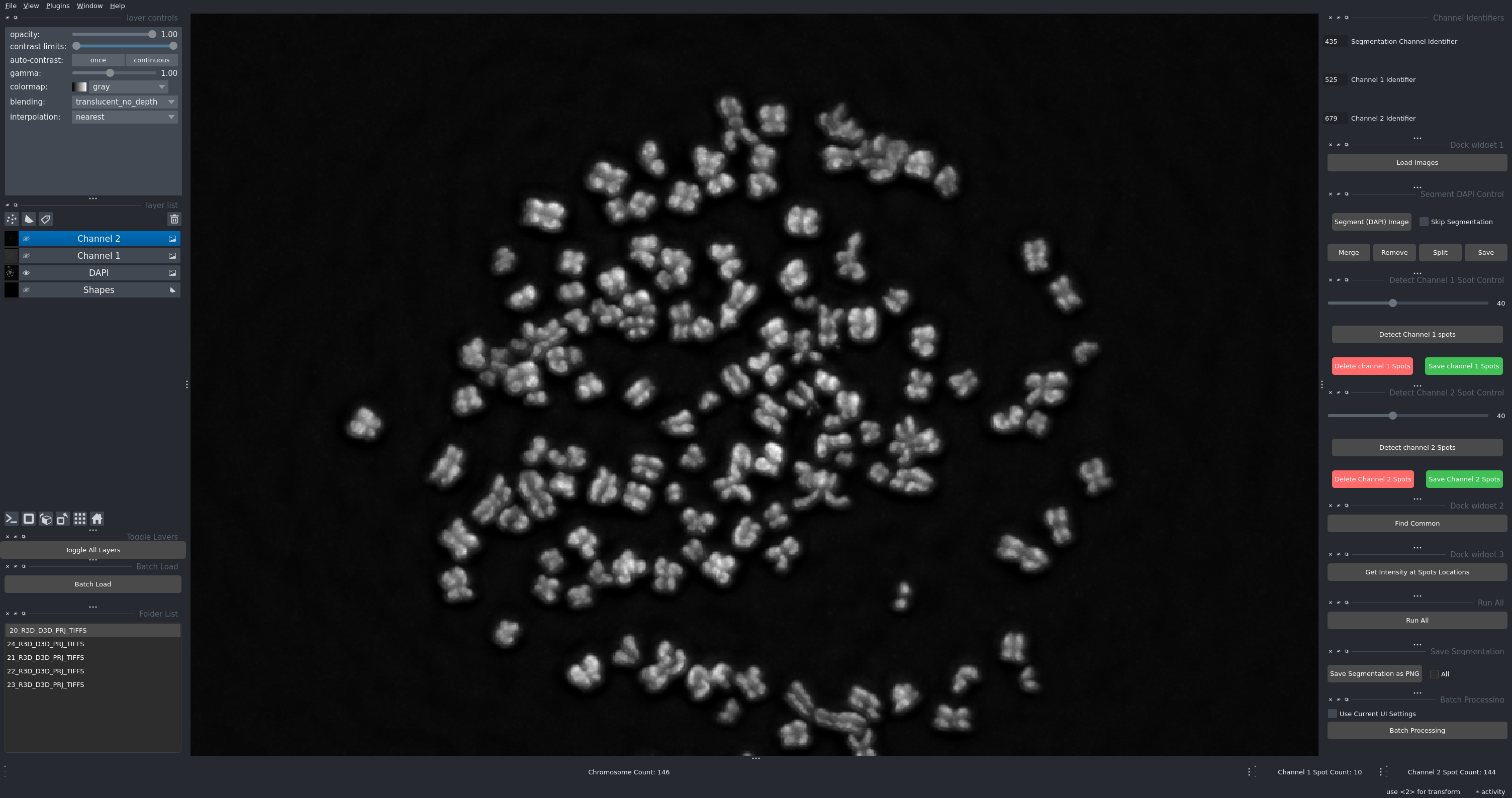
Figure 1: The main interface showing all control panels and the napari viewer.
Main Components:
Channel Identifiers: Text inputs to specify identifiers for DAPI, DNA-FISH, and CENP-C channels
Load Images: Button to select a folder containing images
Segment DAPI Control: Allows segmenting the DAPI image and/or choosing to skip segmentation if needed
Spot Detection Controls: Adjustable sliders for setting detection thresholds for Channel 1 (DNA-FISH) and Channel 2 (CENP-C)
Shapes Layer: A layer to draw lines for manual adjustments like merging or removing chromosomes
Step-by-Step Workflow
Step 1: Setting Up Channel Identifiers
Before loading images, you must define the channel identifiers that match your image naming convention:
Channel Identifiers:
DAPI Channel Identifier: Enter the identifier used for DAPI channel images. For example,
435if your images are named likeR3D_D3D_PRJ_w435.tifChannel 1 Identifier: Enter the identifier used for DNA-FISH channel images (e.g.,
525)Channel 2 Identifier: Enter the identifier used for CENP-C channel images (e.g.,
679)
Alternative Naming:
You can also use descriptive identifiers:
DAPI:
dapiDNA-FISH:
dna_fishCENP-C:
cenpc
Note
The identifier can appear anywhere in the filename. For example, sample_435_channel.tif or w435.tif will both match the identifier 435.
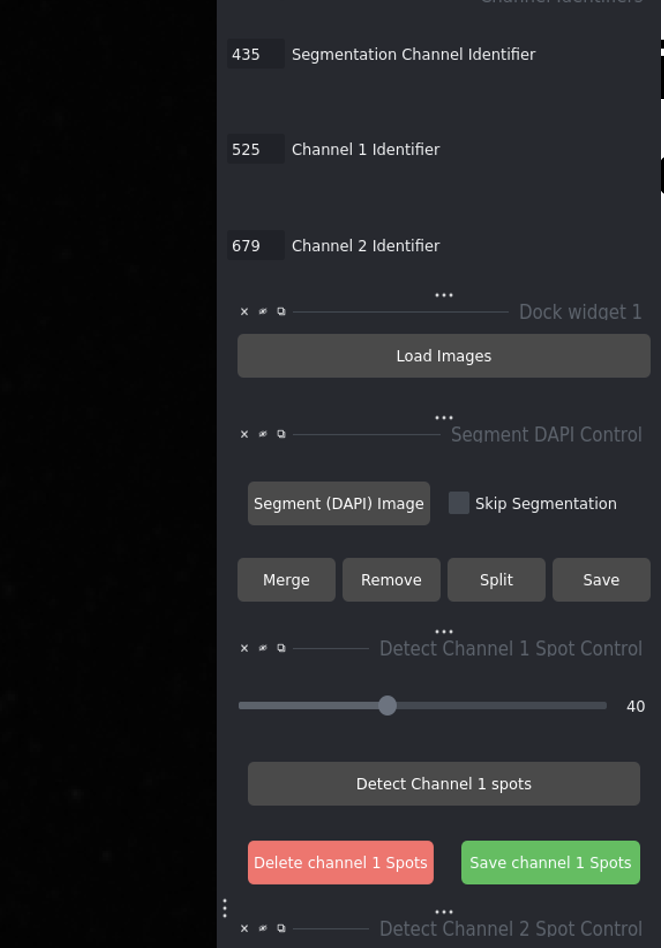
Figure 2: Setting up channel identifiers before loading images.
Step 2: Loading Images
Click the Load Images button
A file dialog will open - navigate to the folder containing your images
Click Select to load the images
Notice the left-bottom corner: all folders with images will appear as a list
Click any item in the list to load all 3 channels for that image set
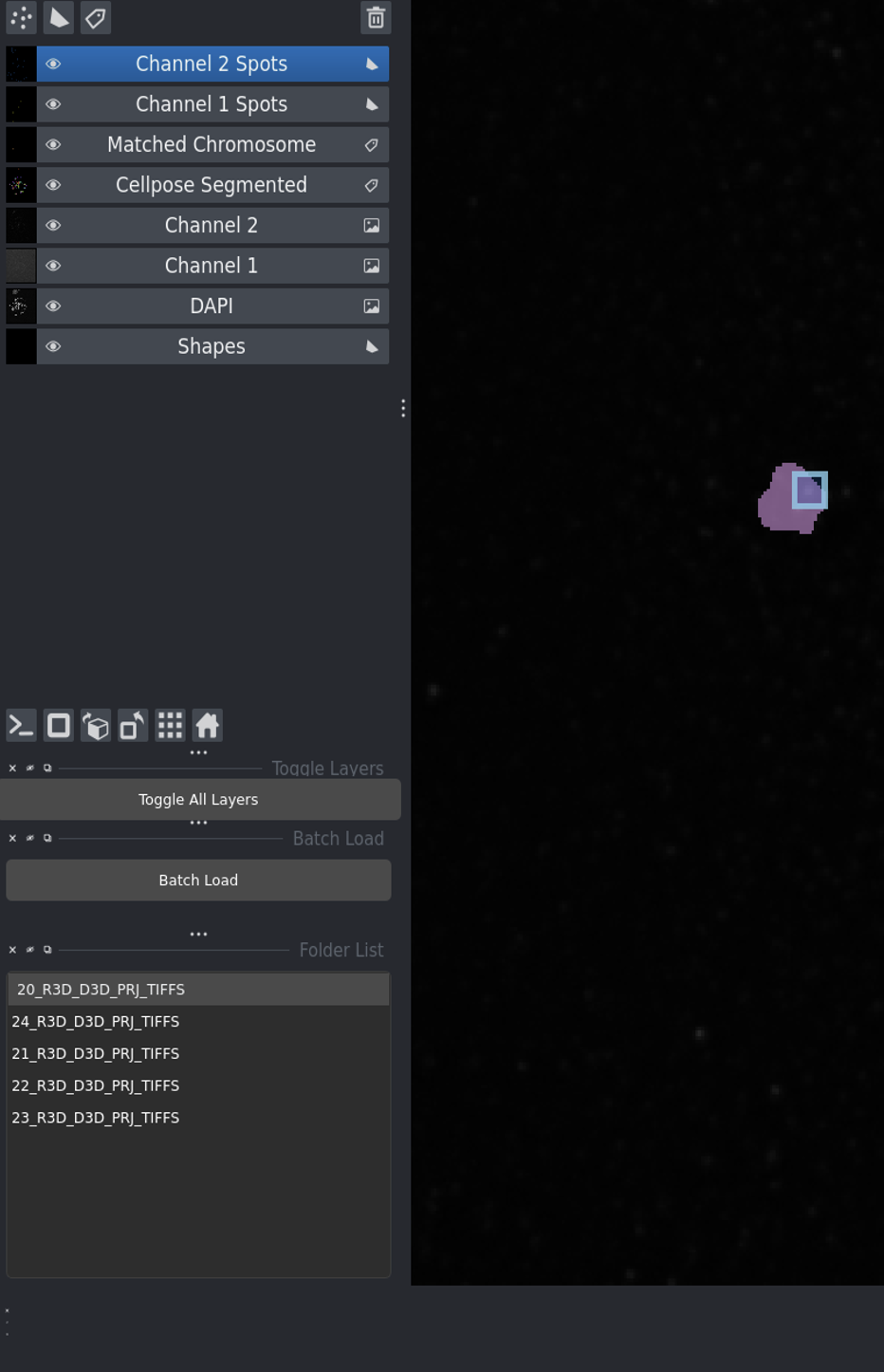
Figure 3: The interface after loading images, showing the folder list and loaded channels.
Tip
If you selected Skip Segmentation, the DAPI image will not be segmented, and spot detection will proceed directly on the other channels.
Understanding the Napari Viewer
After loading images, all 3 channels are visible in the napari viewer:
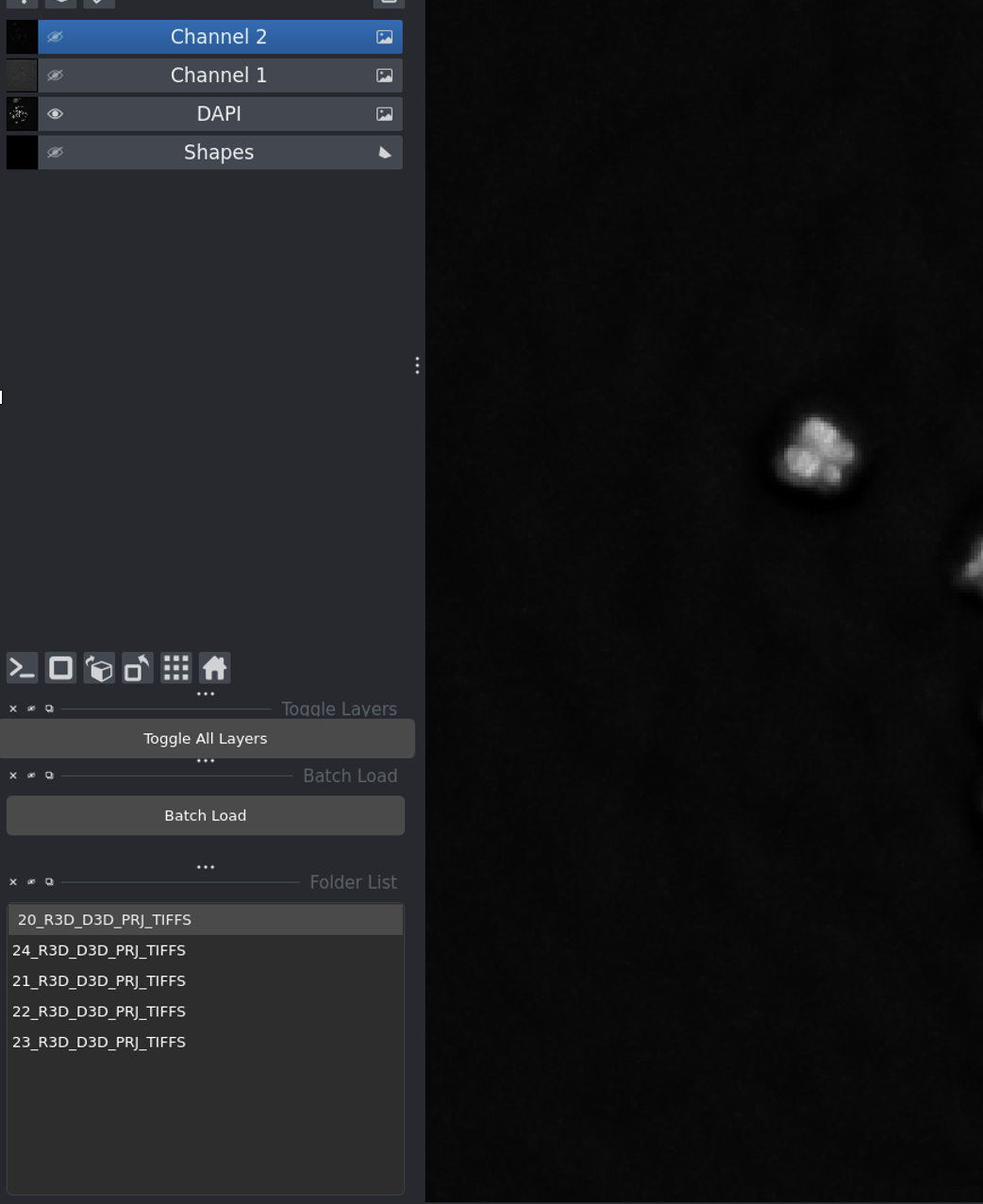
Figure 4: Napari viewer showing all channels and layer controls.
Layer Controls:
Click the eye icon next to any layer to show/hide that channel
Use Toggle All Layers to show/hide all layers at once
Adjust brightness and contrast for each layer individually
Layers list appears on the left side of the viewer
Step 3: Segmenting DAPI Image
The DAPI segmentation step identifies individual chromosomes using a trained Cellpose model.
Click Segment (DAPI) Image
The software will process the DAPI channel
A new labels layer called “Cellpose Segmented DAPI” will appear in the viewer
Each chromosome is assigned a unique label/color
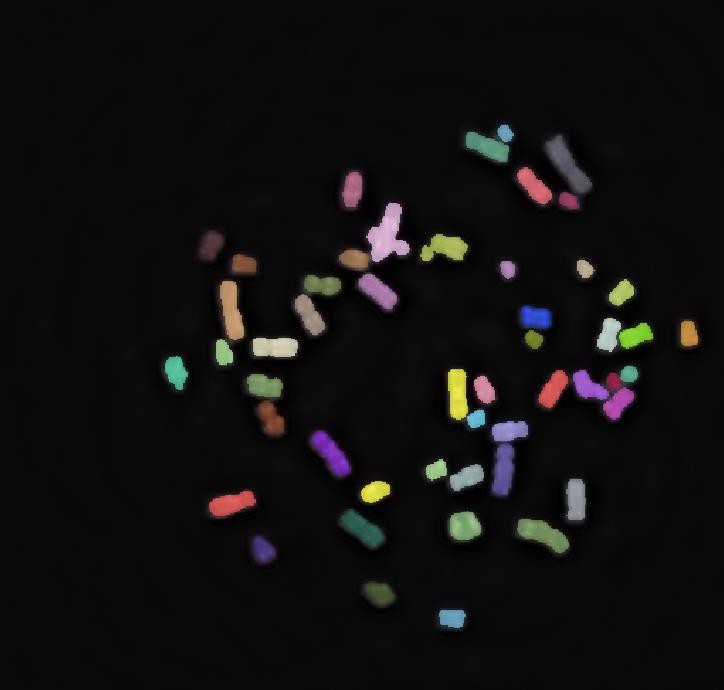
Figure 5: Output of chromosome segmentation showing individual chromosomes labeled with different colors.
Note
If you want to skip segmentation, check the Skip Segmentation checkbox before loading images. This is useful when:
You don’t have DAPI images
You only want to analyze DNA-FISH and CENP-C channels
Chromosomes are not needed for your analysis
Step 4: Adjusting Spot Detection Thresholds
Before detecting spots, adjust the threshold values to optimize detection sensitivity:
- DNA-FISH Threshold Slider:
Range: 0-100 (displayed as 0.0-1.0 internally)
Lower value = more sensitive (detects more spots, including potential noise)
Higher value = more selective (detects only bright spots)
- CENP-C Threshold Slider:
Same range and behavior as DNA-FISH
Optimize based on your image’s signal-to-noise ratio
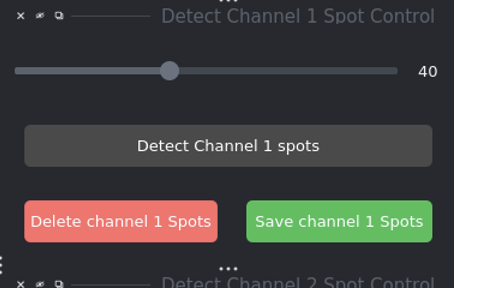
Figure 6: Spot detection threshold sliders for both channels.
Important
Changing the slider resets the spot detection status, requiring you to re-run the spot detection process.
Step 5: Detecting Spots
After setting appropriate thresholds:
Click Detect Channel 1 Spots to identify spots in the DNA-FISH image
Click Detect Channel 2 Spots for the CENP-C image
Detected spots will be displayed as labels in the napari viewer
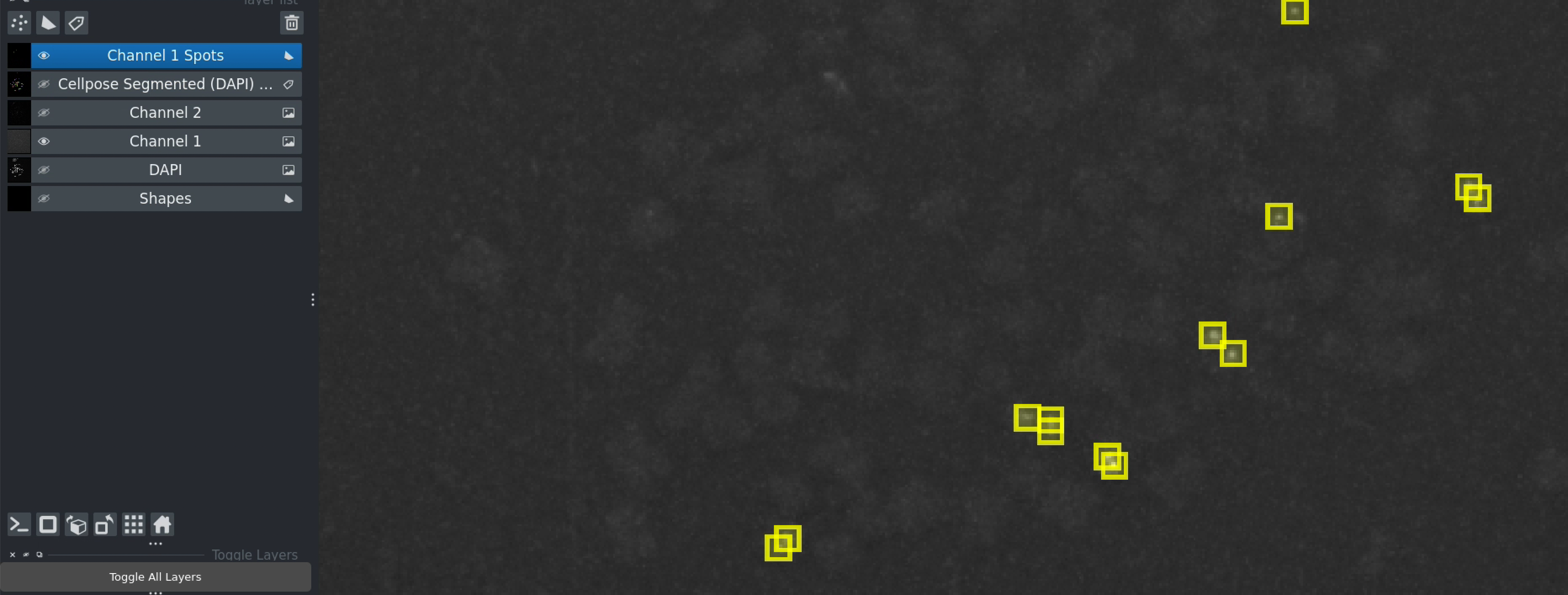
Figure 7: After clicking “Detect Channel 1 Spots” - a new layer shows detected spots as brown markers.
Viewing Detected Spots:
A new layer “Channel 1 spots” appears for DNA-FISH
Brown/colored markers indicate detected spot locations
Toggle the DNA-FISH channel visibility to see how spots overlay with the signal
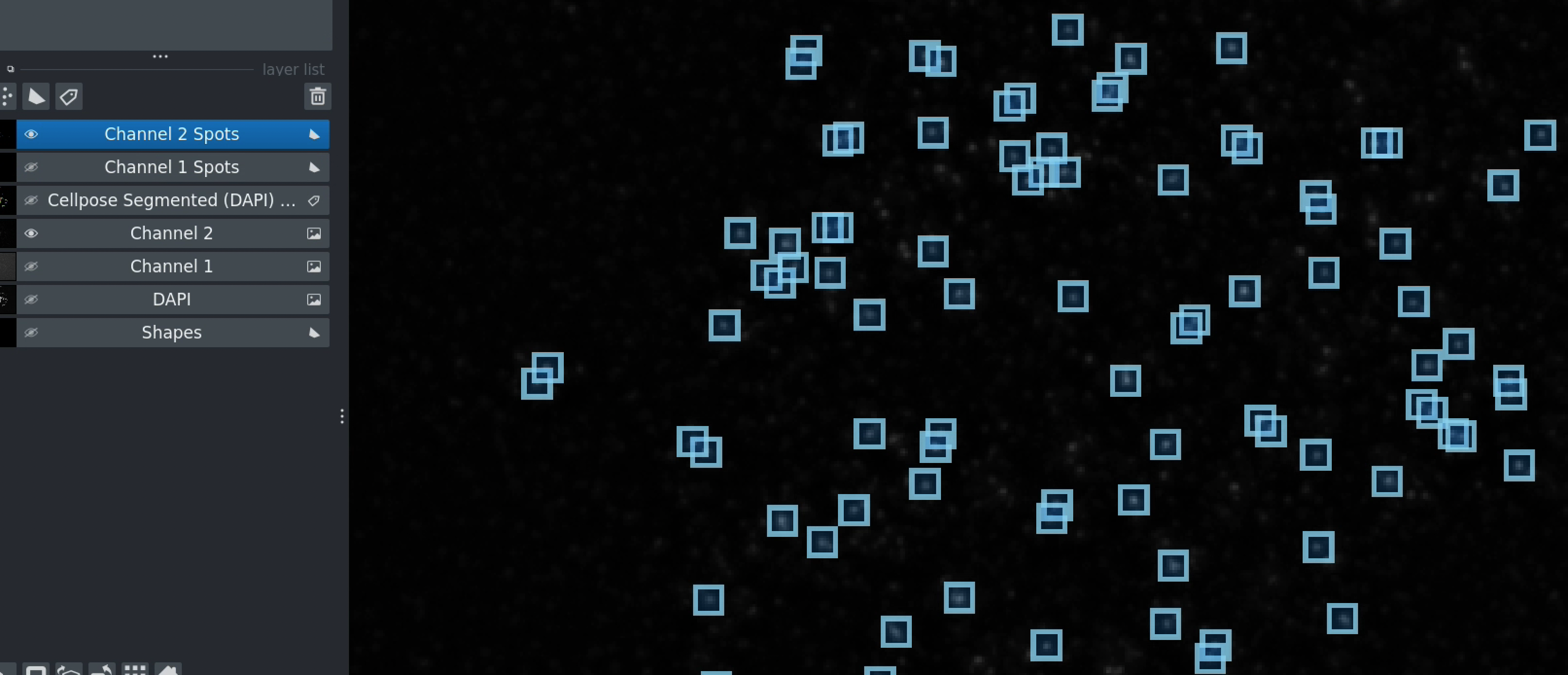
Figure 8: Both channels showing detected spots after processing Channel 2.
Tip
If you already ran spot detection and want to redo it:
Adjust the threshold slider (even slightly)
Click the detection button again
Step 6: Finding Common Chromosomes
This step identifies chromosomes where both DNA-FISH and CENP-C signals are present:
Click Find Common
The software identifies matching regions between both channels
Common labels are overlaid, highlighting areas where both signals co-localize
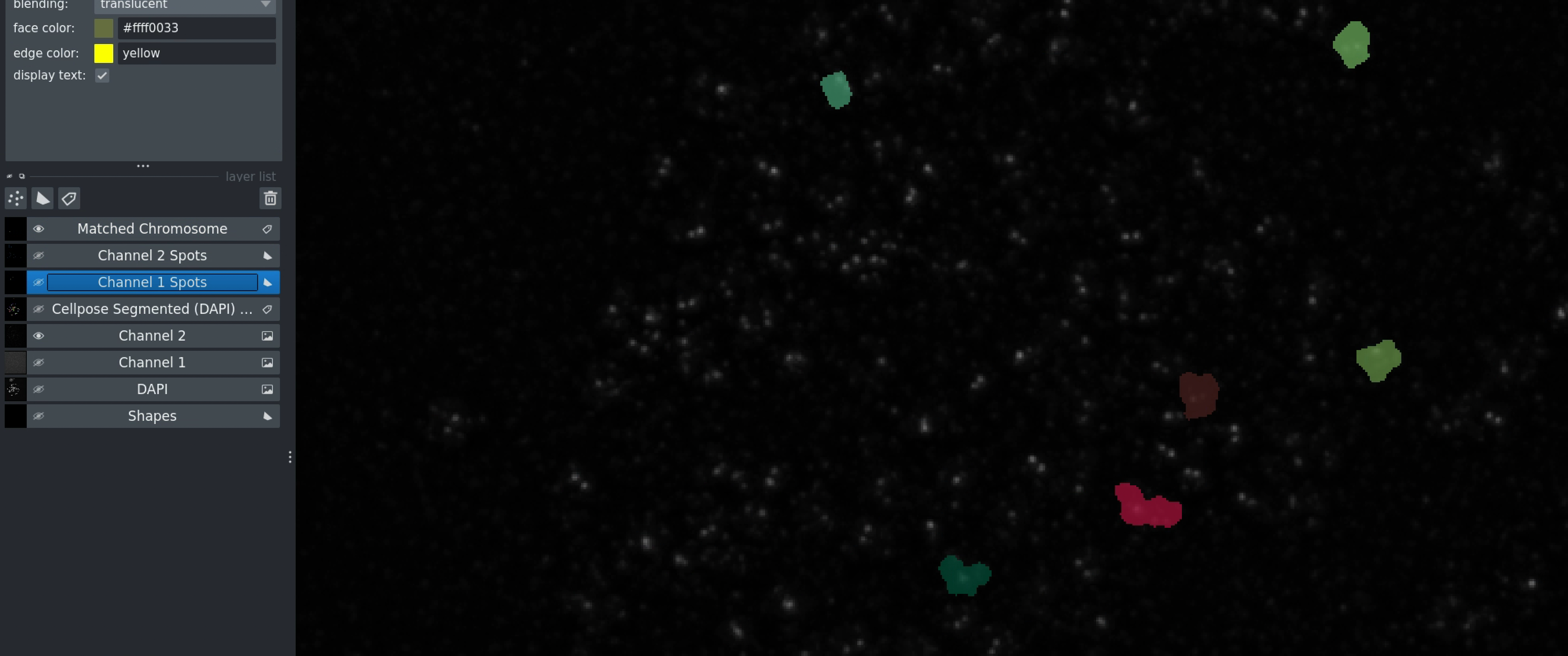
Figure 9: Interface for finding common regions between channels.
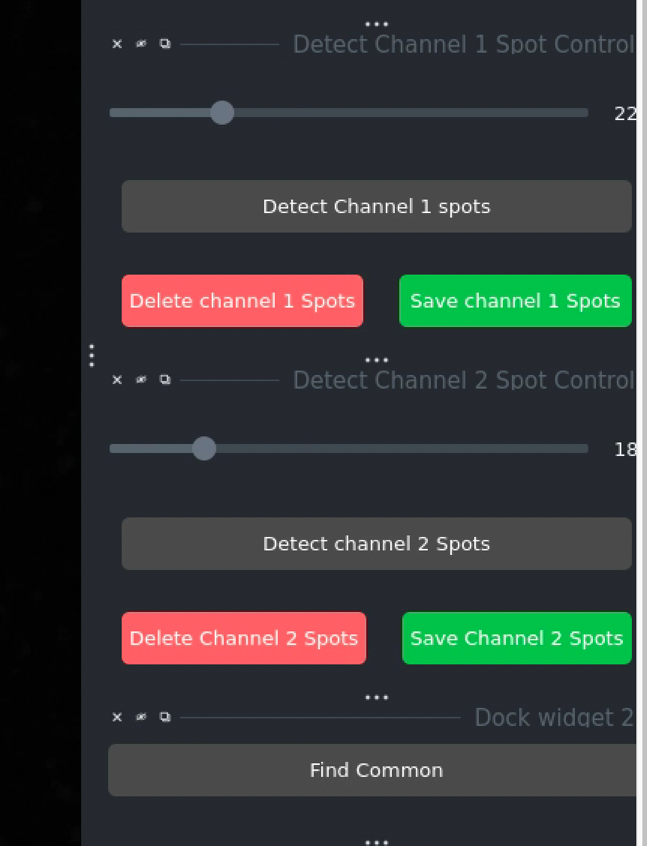
Figure 10: Visualization of common regions where both signals overlap.
This step is crucial for:
Filtering out background noise
Ensuring both signals are present in the analysis region
Improving measurement accuracy
Step 7: Calculating Intensity and Exporting Results
The final analysis step measures signal intensities at spot locations:
Click Get Intensity at Spots Location
The software calculates:
Channel 2 intensity at Channel 1 spot locations
Channel 1 intensity at Channel 2 spot locations
A CSV file is automatically saved in the same folder as your images
Filename format:
<folder_name>_intensity.csv
Locating Your Results:
Check the terminal window to see where the file is being saved.
CSV File Contents:
The exported CSV contains:
Spot coordinates (X, Y)
Intensity values for both channels
Metadata (folder name, parameters used)
Analysis Without Segmentation
For cases where chromosome segmentation is not needed:
When to Use:
No DAPI images available
Only interested in DNA-FISH and CENP-C co-localization
Analyzing entire image without chromosome boundaries
How to Use:
Check Skip Segmentation before loading images
Load only DNA-FISH and CENP-C channels (DAPI is ignored even if present)
Follow Steps 4-7 normally (spot detection, finding common regions, intensity calculation)
Analysis Approach:
Intensity is calculated at DNA-FISH spots from the CENP-C channel
No chromosome boundaries are used
Everything else remains the same
Automated Analysis
Run All
The Run All button automates the entire workflow:
Check/uncheck Skip Segmentation as per your requirement
Adjust threshold sliders to desired values
Click Run All
The software will automatically execute:
Segmentation (if not skipped)
Channel 1 spot detection
Channel 2 spot detection
Find common regions
Calculate and export intensities
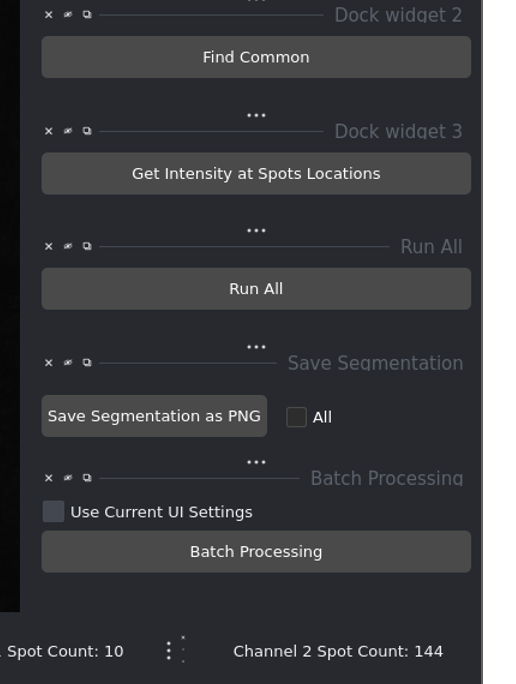
Figure 11: The “Run All” button for automated processing.
Tip
Use “Run All” when you’ve established optimal thresholds and want to quickly process individual images.
Batch Processing
For processing multiple image folders with consistent settings:
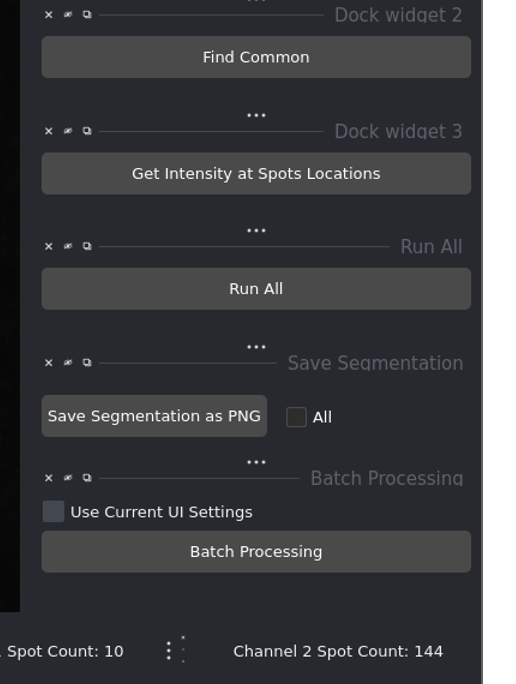
Figure 12: Batch processing controls for analyzing multiple image sets.
How Batch Processing Works:
Load all folders using the folder list on the left
Configure your settings (thresholds, segmentation options)
Choose your processing mode:
Use Current UI Settings (checked): Recalculates everything from scratch using the same thresholds for every image
Use Current UI Settings (unchecked): Uses previously saved settings for each image folder
Click Batch Processing
Output:
Individual CSV files saved in each image folder
Summary CSV file created in the root directory
Consolidated results for all processed images
Note
Batch processing goes through all opened files in the list view and calculates necessary intensity measurements for each.
Manual Correction Tools
Step 8: Merging Chromosomes
When segmentation incorrectly separates a single chromosome into multiple regions:
Procedure:
Select the Shapes layer from the layer list (lower left corner)
Select the Polygon/Draw tool from the top toolbar (marked with a pencil icon)
Draw a line connecting the chromosome regions you want to merge:
Click on the first segmented chromosome
Continue drawing the line over to the second chromosome
Double-click to finish drawing
Click Merge Chromosomes
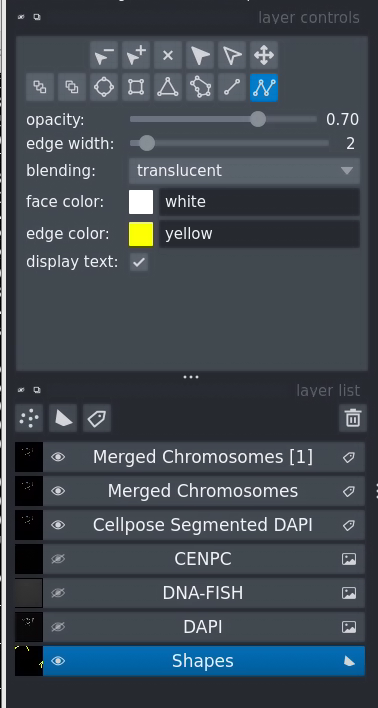
Figure 13: Drawing a line to indicate chromosomes to merge.
Important Steps:
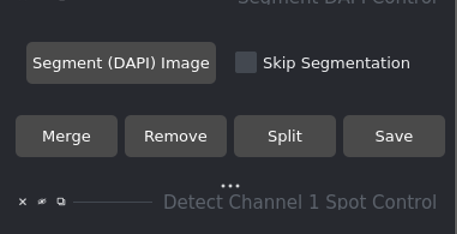
Figure 14: Make sure both the segmented layer and shapes layer are visible.
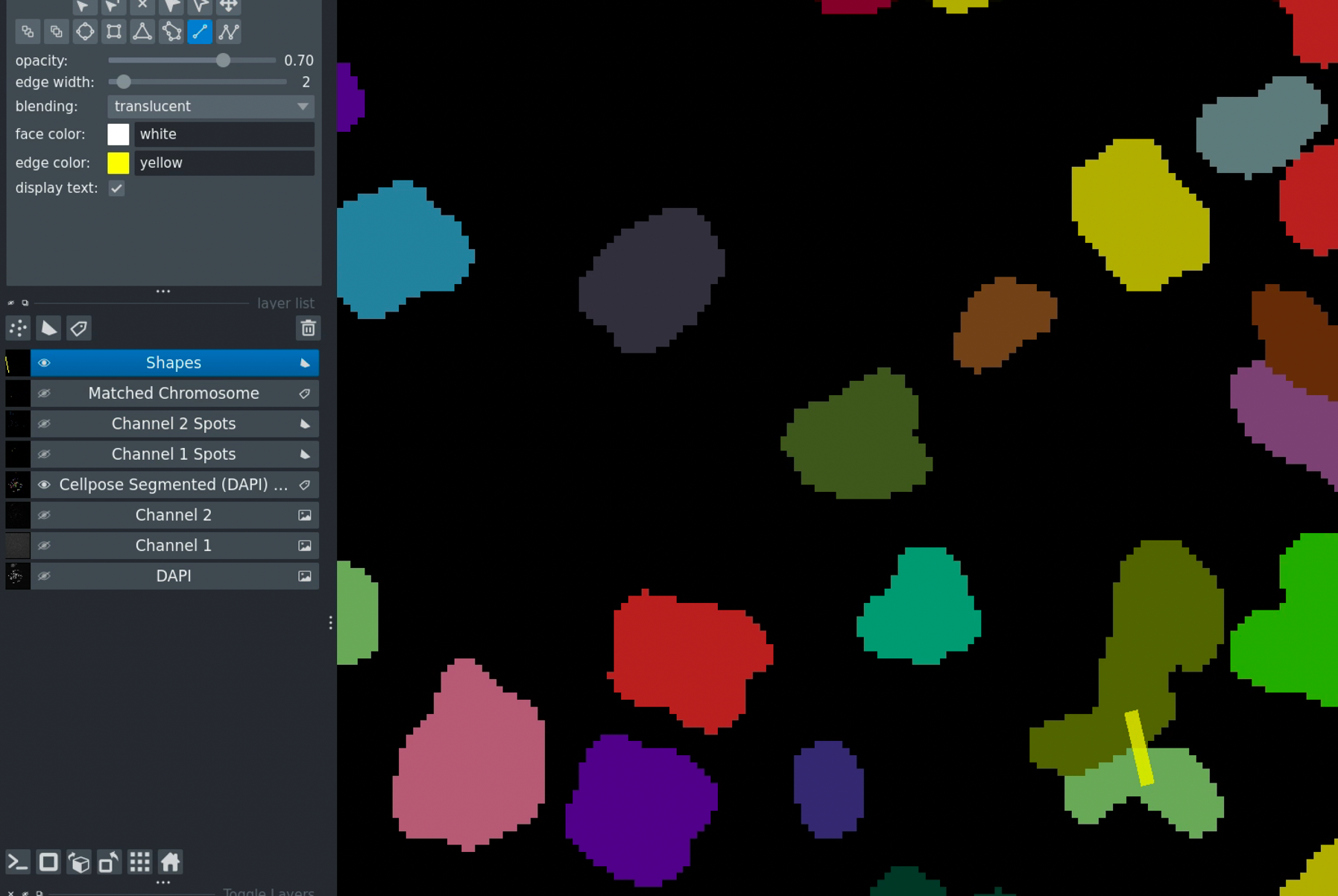
Figure 15: Ensure the shapes layer is selected when drawing.
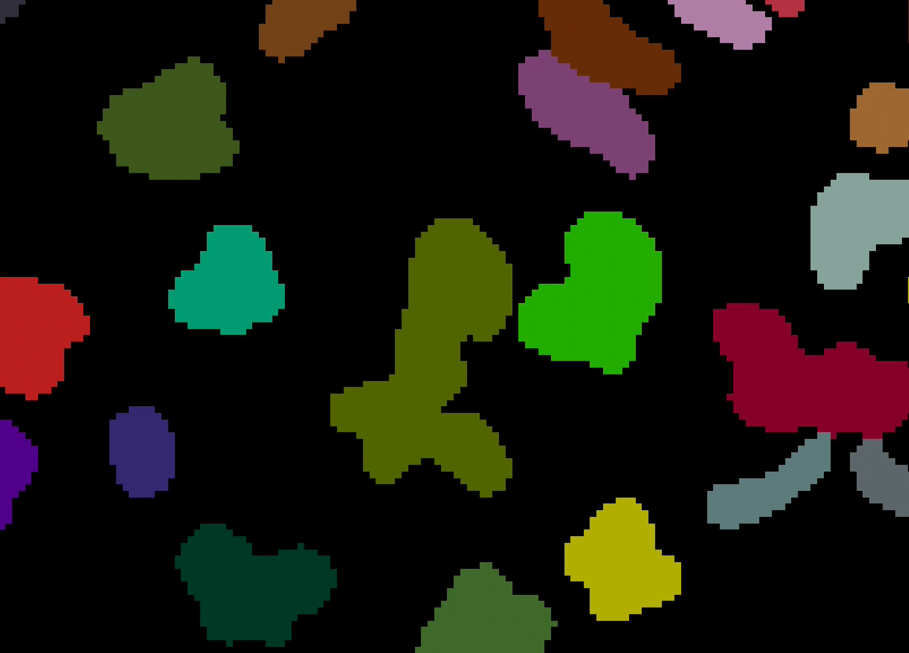
Figure 16: Result after clicking “Merge Chromosomes” - the regions are now combined.
Removing Chromosomes
To delete unwanted chromosomes from the analysis:
Procedure:
Select the Shapes layer
Draw a line through the chromosome you want to remove
Click Remove
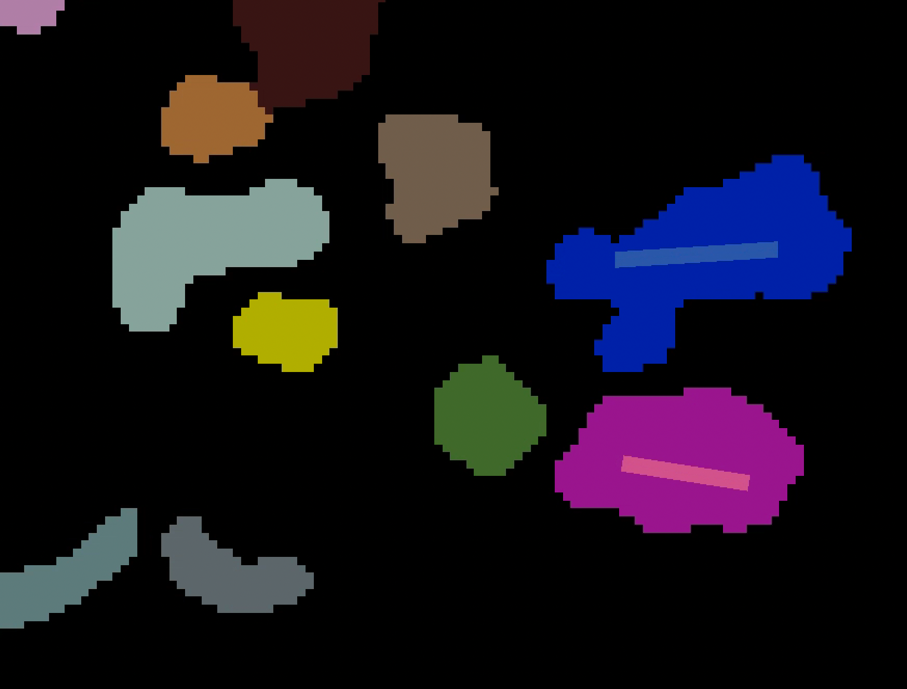
Figure 17: Drawing over a chromosome to mark it for removal.
Result:

Figure 18: The updated chromosome layer excluding the removed chromosome.
Saving Manual Corrections
After making manual corrections:
Click Save in the interface
Your corrections are stored
Next time you load this image set, it will use the updated segmentation
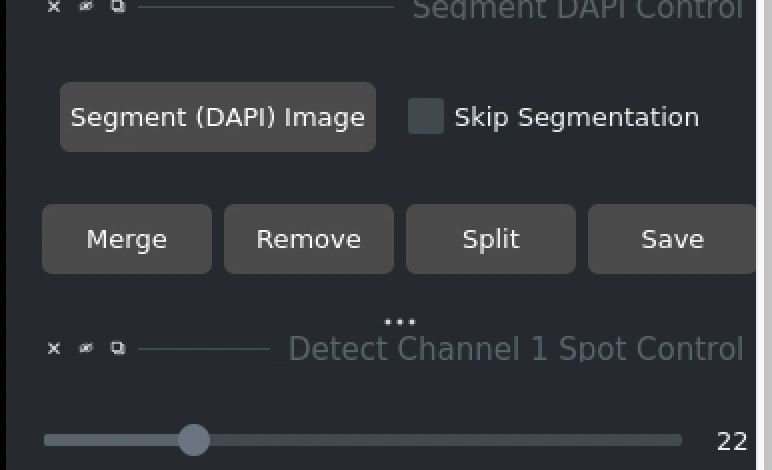
Figure 19: Save your work to preserve manual corrections.
Updating Spot Detection
You can also manually correct spot detections:
Deleting Channel 1 Spots:
Select the Shapes layer
Draw shapes (squares or polygons) over spots you want to delete
Click Delete Channel 1 Spots
The spots layer will be updated
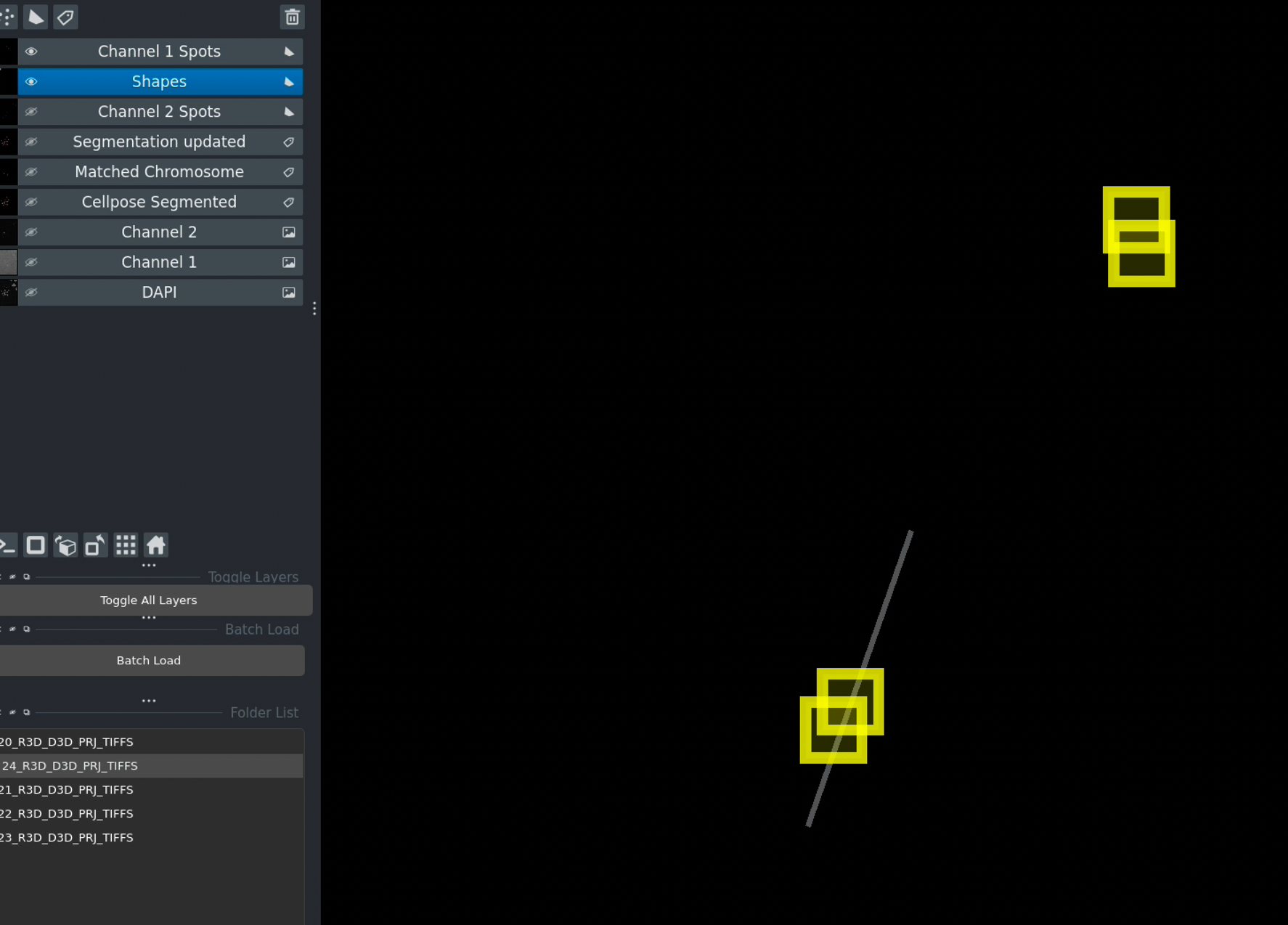
Figure 20: Drawing shapes to mark spots for deletion.
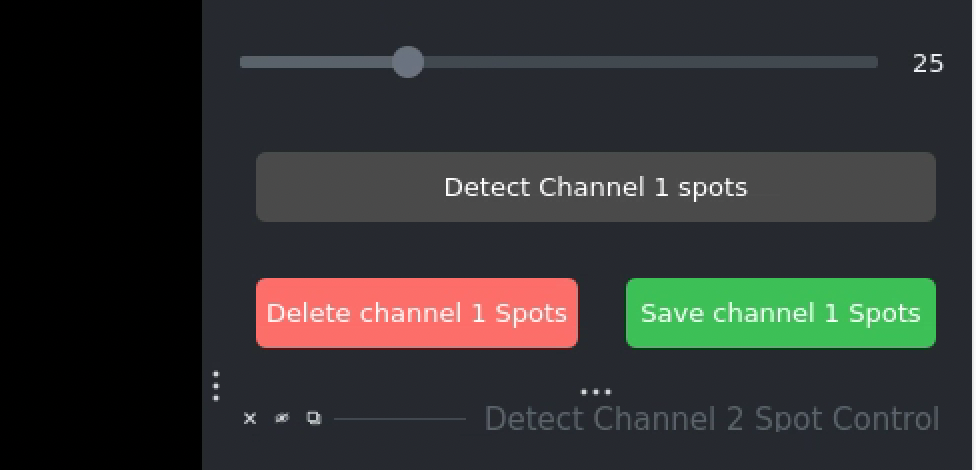
Figure 21: Updated spot layer after deletion.
Deleting Channel 2 Spots:
The same process applies to Channel 2:
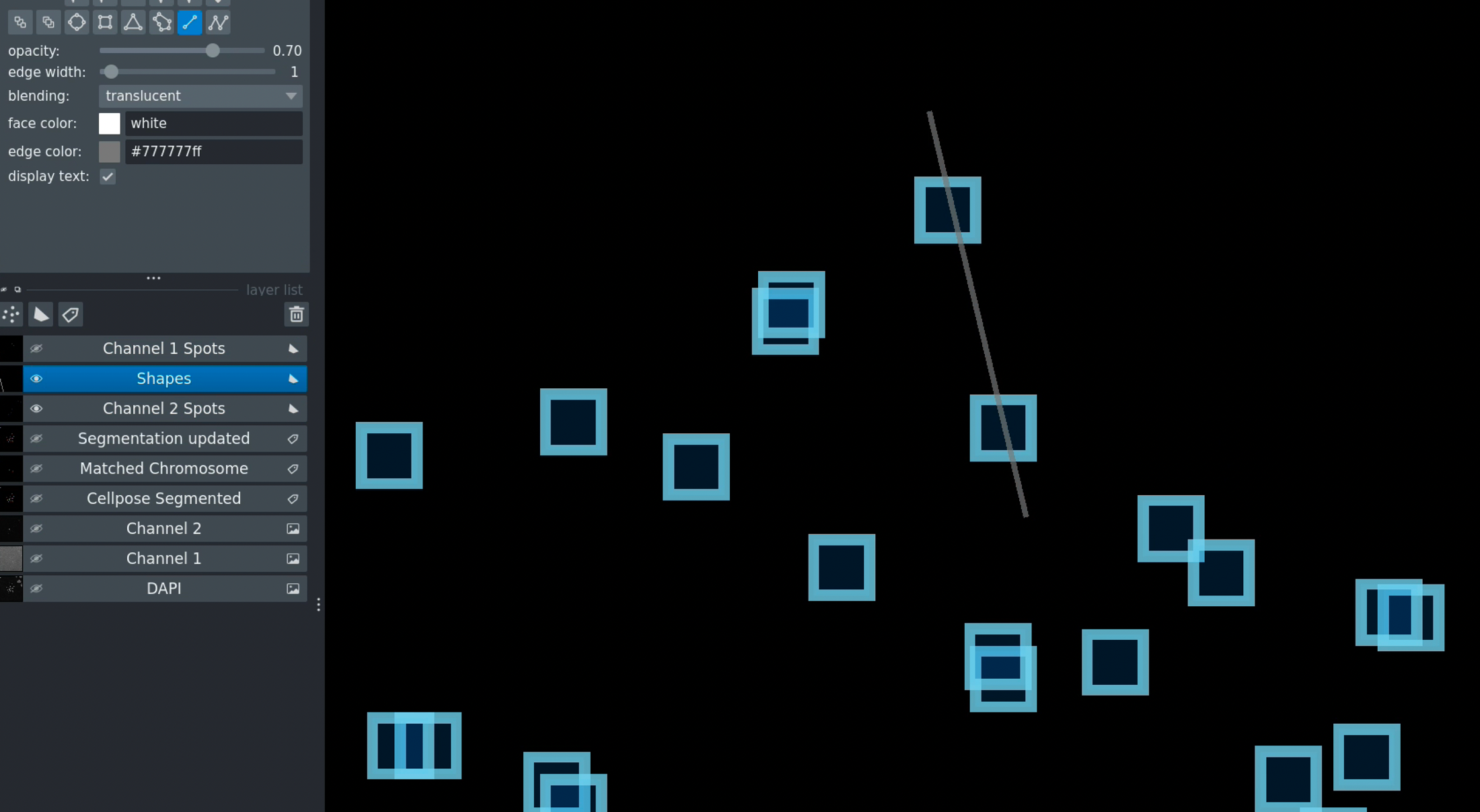
Figure 22: Interface for deleting Channel 2 spots.
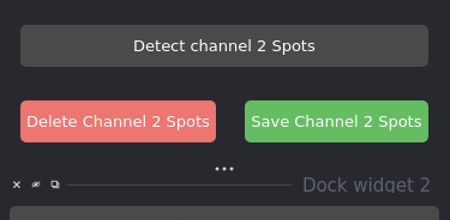
Figure 23: Updated Channel 2 spots after manual correction.
Important
Make sure the shapes layer is selected when drawing
Click Save to keep your spot corrections
Without saving, the software will use default detected spots when you reload
Data Export and Saving
Saving Results
Processed Images:
All visualizations (segmented images, detected spots) remain in the napari viewer
Use napari’s export options: File → Save Selected Layer(s)
Export individual layers as PNG or TIFF
Intensity Data:
CSV files with intensity data are saved automatically
Location: Same folder as the analyzed images
Filename:
<folder_name>_intensity.csv
Exporting Specific Layers:
Select the layer you want to export
Navigate to File → Save Selected Layer(s) in the napari menu
Choose format and location
Image Requirements
Supported Formats:
TIFF (recommended for multi-channel microscopy)
PNG
JPG
Channel Requirements:
The software expects multi-channel fluorescence microscopy images with:
DAPI channel: For chromosome segmentation
DNA-FISH channel: For detecting specific DNA sequences
CENP-C channel: For detecting centromere proteins
File Naming Conventions:
Use consistent identifiers in filenames. Examples:
sample_001_w435.tif(DAPI)sample_001_w525.tif(DNA-FISH)sample_001_w679.tif(CENP-C)
Or:
cell1_dapi.tifcell1_dna_fish.tifcell1_cenpc.tif
Parameters and Settings
Detection Thresholds
DNA-FISH Threshold:
Range: 0-100% (displayed as 0.0-1.0 internally)
Lower values = more sensitive detection
Higher values = more specific detection
CENP-C Threshold:
Same range and behavior as DNA-FISH
Optimize based on signal-to-noise ratio
Test on sample images before batch processing
Segmentation Parameters
Cellpose Settings:
Model: Custom trained model for metaphase chromosomes
Diameter: Automatically determined by the model
Channels: [0,0] for grayscale DAPI input
GPU acceleration: Enabled by default (if available)
Post-processing Options:
Remove small objects: Filters out noise and artifacts
Remove edge objects: Excludes chromosomes touching image borders
Fill holes: Fills gaps within chromosome regions
Smooth boundaries: Applies morphological smoothing
Error Handling & Tips
Common Error Messages
- “No images found”
Check folder structure
Verify file naming conventions match your identifiers
Ensure images are in supported formats
- “CUDA out of memory”
Reduce image size
Use CPU mode instead of GPU
Close other GPU-intensive applications
- “Model not found”
Verify Cellpose model path in code
Ensure the trained model file is accessible
Troubleshooting
Segmentation Problems:
Check DAPI image quality and contrast
Verify that chromosomes are well-separated in the image
Adjust post-processing parameters
Use manual correction tools if needed
Spot Detection Issues:
Optimize threshold values using test images
Check for proper image focus
Review channel assignments
Ensure proper background subtraction
Performance Issues:
Enable GPU acceleration for Cellpose
Reduce image size if memory limited
Process smaller batches
Close unnecessary applications
File Loading Errors:
Verify file naming conventions
Check image formats (TIFF preferred for microscopy)
Ensure all required channels are present
Check file permissions
Best Practices
Image Acquisition
Use consistent imaging parameters across all samples
Ensure proper focus across all channels
Optimize exposure times for each channel to avoid saturation
Maintain consistent sample preparation protocols
Data Organization
Use clear, hierarchical folder structures
Follow consistent naming conventions
Keep raw and processed data separate
Document analysis parameters for reproducibility
Quality Control
Manually review a subset of results
Check for systematic errors in segmentation or detection
Validate thresholds on test images before batch processing
Compare automated results with manual counts when possible
Parameter Optimization
Test different threshold values on representative images
Document optimal parameters for different imaging conditions
Use the same parameters for samples that should be compared
Re-optimize if imaging conditions change
Performance Optimization
Use GPU acceleration when available
Process similar images in batches
Optimize threshold values beforehand to minimize re-processing
Clean up intermediate files regularly to save disk space
Data Backup
Regularly backup raw data
Save analysis parameters with results
Keep multiple versions of processed data if needed
Document any manual corrections made
Summary
This user guide has covered:
Complete step-by-step workflow from loading to analysis
Manual correction tools for quality control
Batch processing for high-throughput analysis
Troubleshooting common issues
Best practices for optimal results
For API reference and programmatic usage, see API Documentation.
For installation instructions, see Installation.
Contact
For questions, issues, or support:
Email: sagarm2@nih.gov
Affiliation: HITIF/LRBGE/CCR/NCI